Widgets
Choose what each widget shows
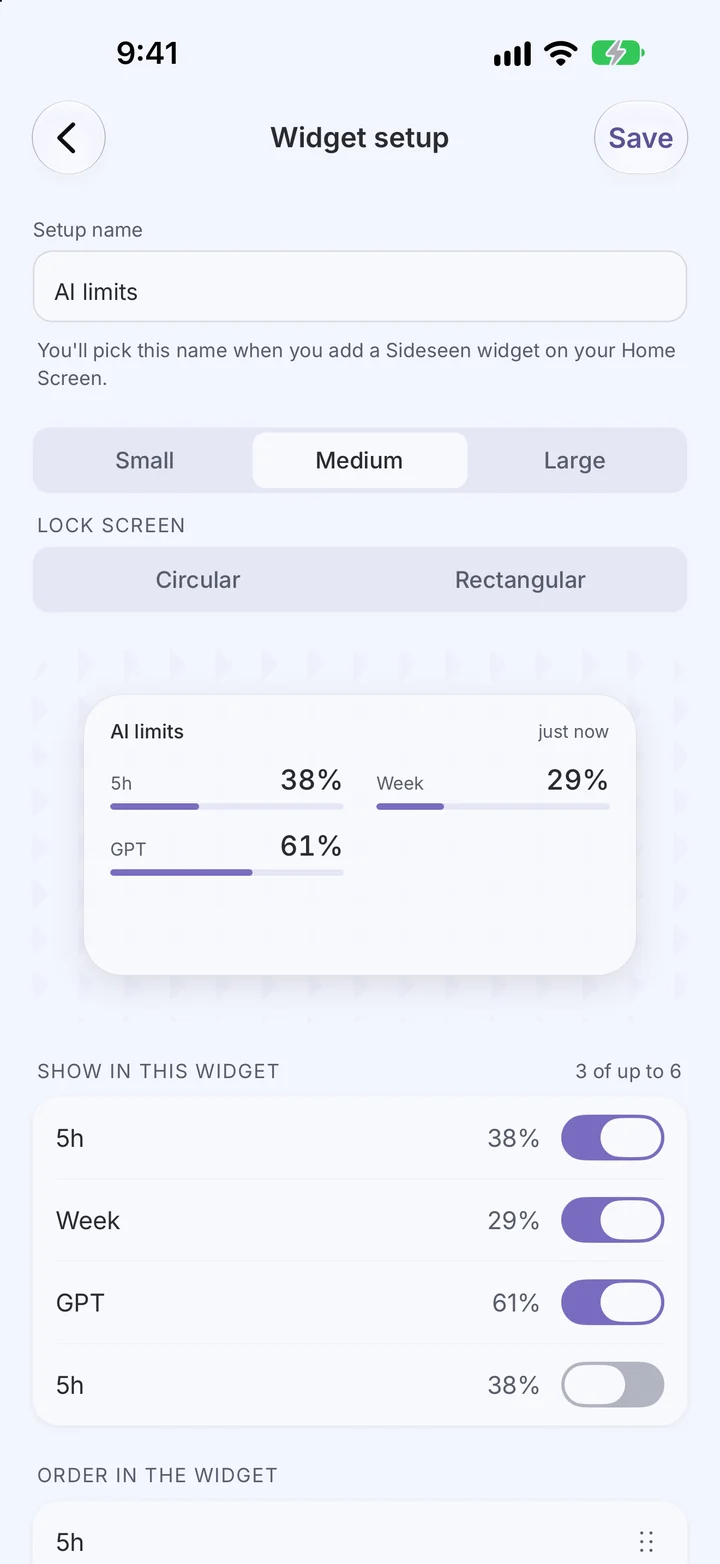
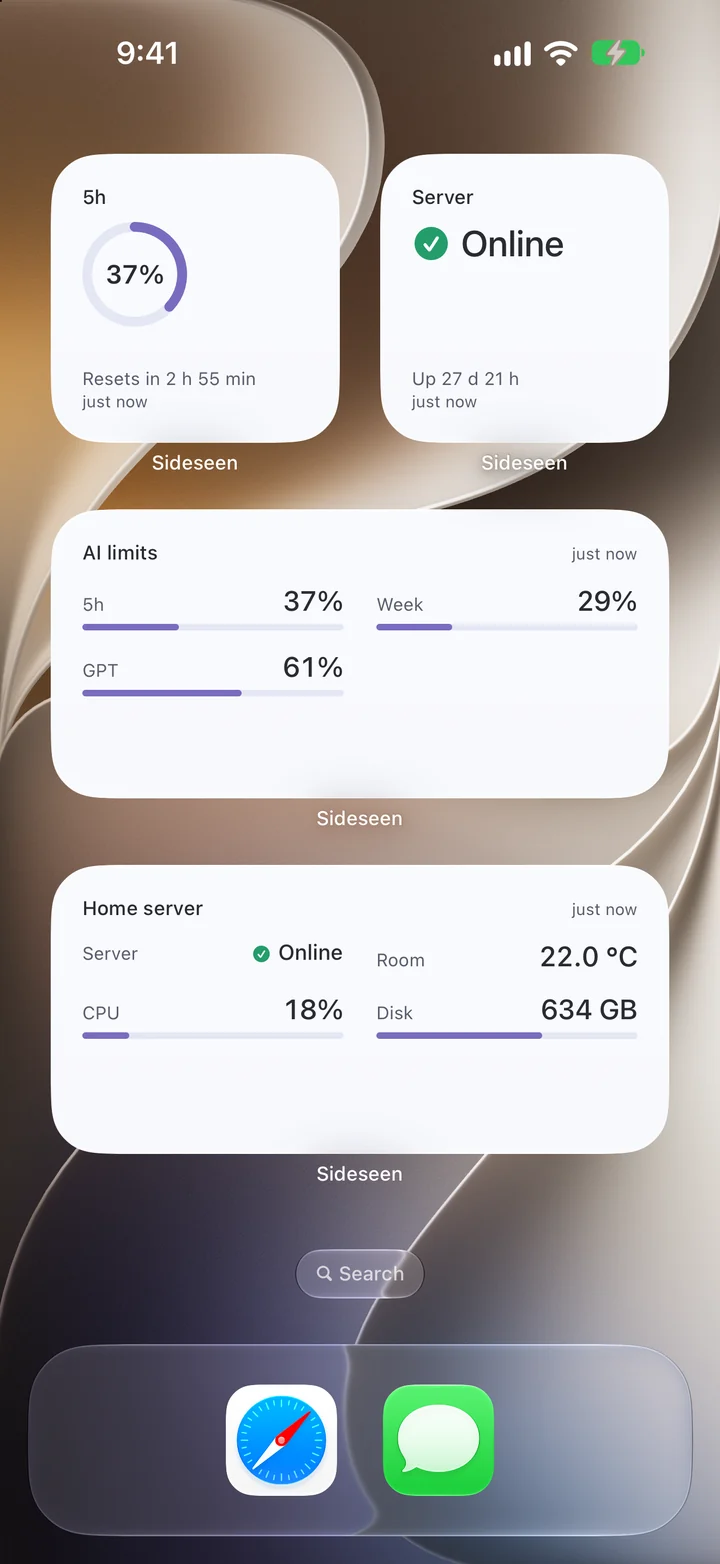
Small, medium and large Home Screen widgets, plus Lock Screen. Show each value as a number, bar, ring, chart or status.
Now on the App Store and Google Play
Your AI subscription limits and when they reset, the status of your server, the temperature in your room — any value you can serve as JSON, right on your Home Screen.
Free. No account. Your data goes straight to your phone.
How it works
You don't need to write code or configure anything by hand.
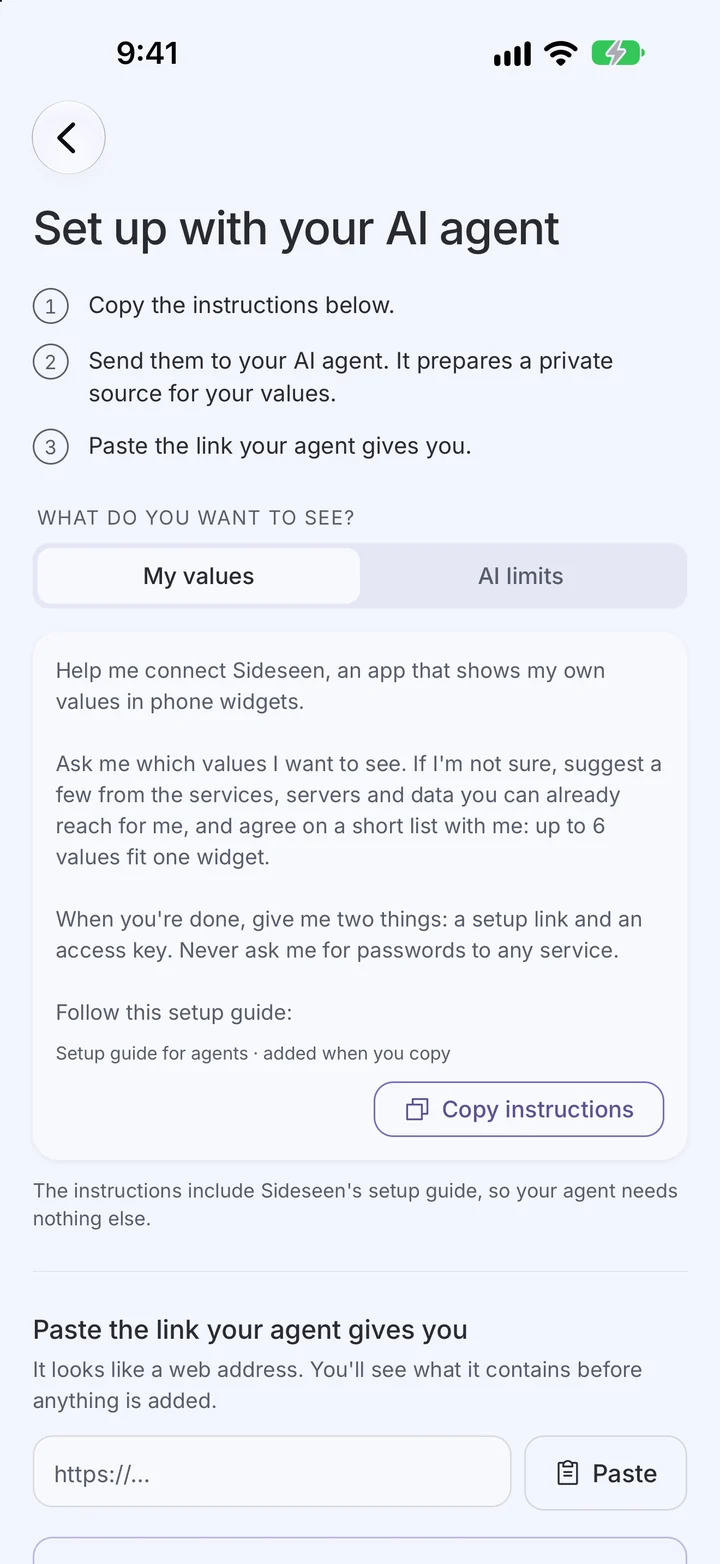
Pick what you want to see and copy the instructions from the app. They include the setup guide, nothing else.
Send them to your AI agent. It prepares a private data source and gives you one setup link.
See exactly what the link contains, tap Connect — your values are in the app and ready for widgets.
Prefer to do it yourself? Add a source by hand: its https address and access key, the fields, and how they look. Agents can start at sideseen.app/llms.txt.
Widgets
Small, medium and large Home Screen widgets, plus Lock Screen. Show each value as a number, bar, ring, chart or status.
Lock Screen
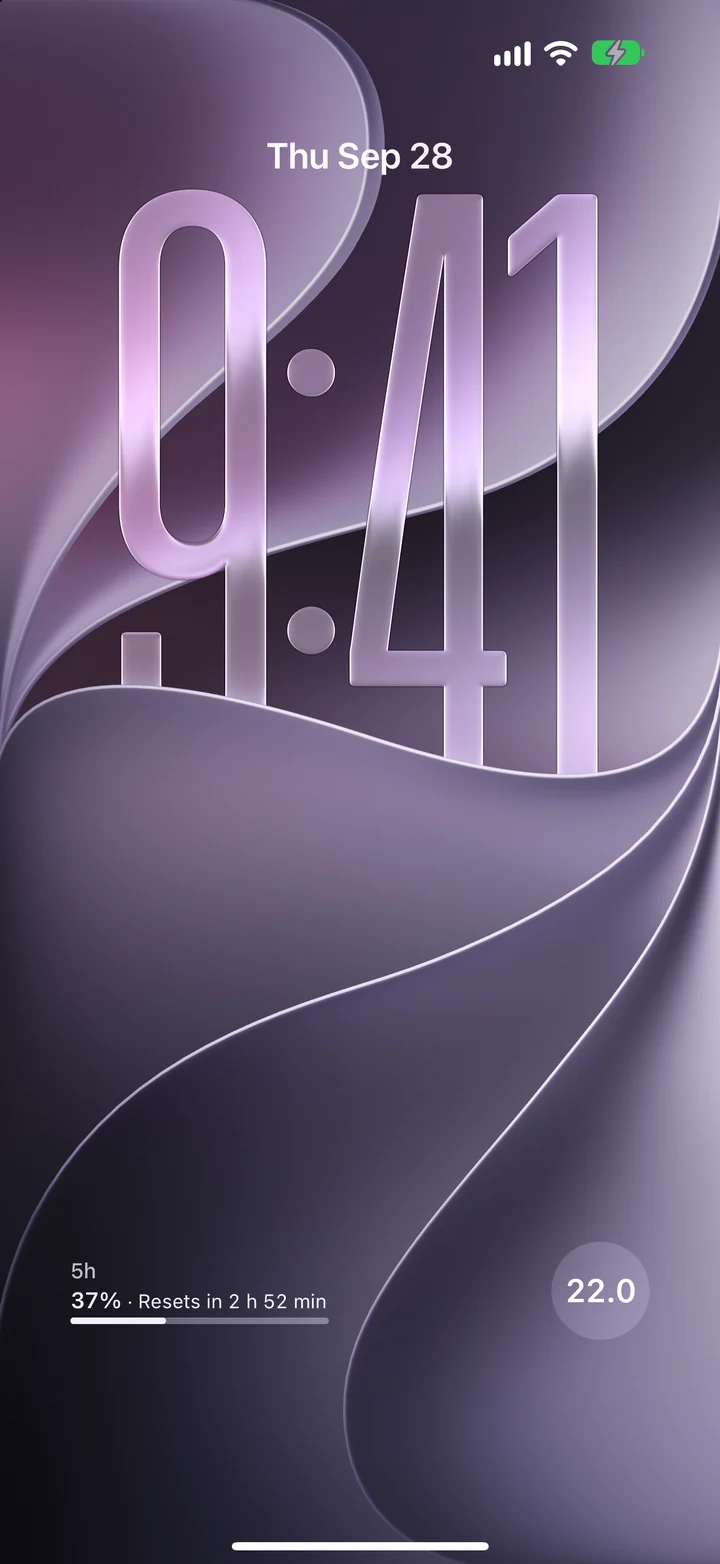
Glance at your limits without unlocking — or keep values hidden until Face ID.
Freshness
Every value shows when it was last updated. Charts use the history your source keeps.
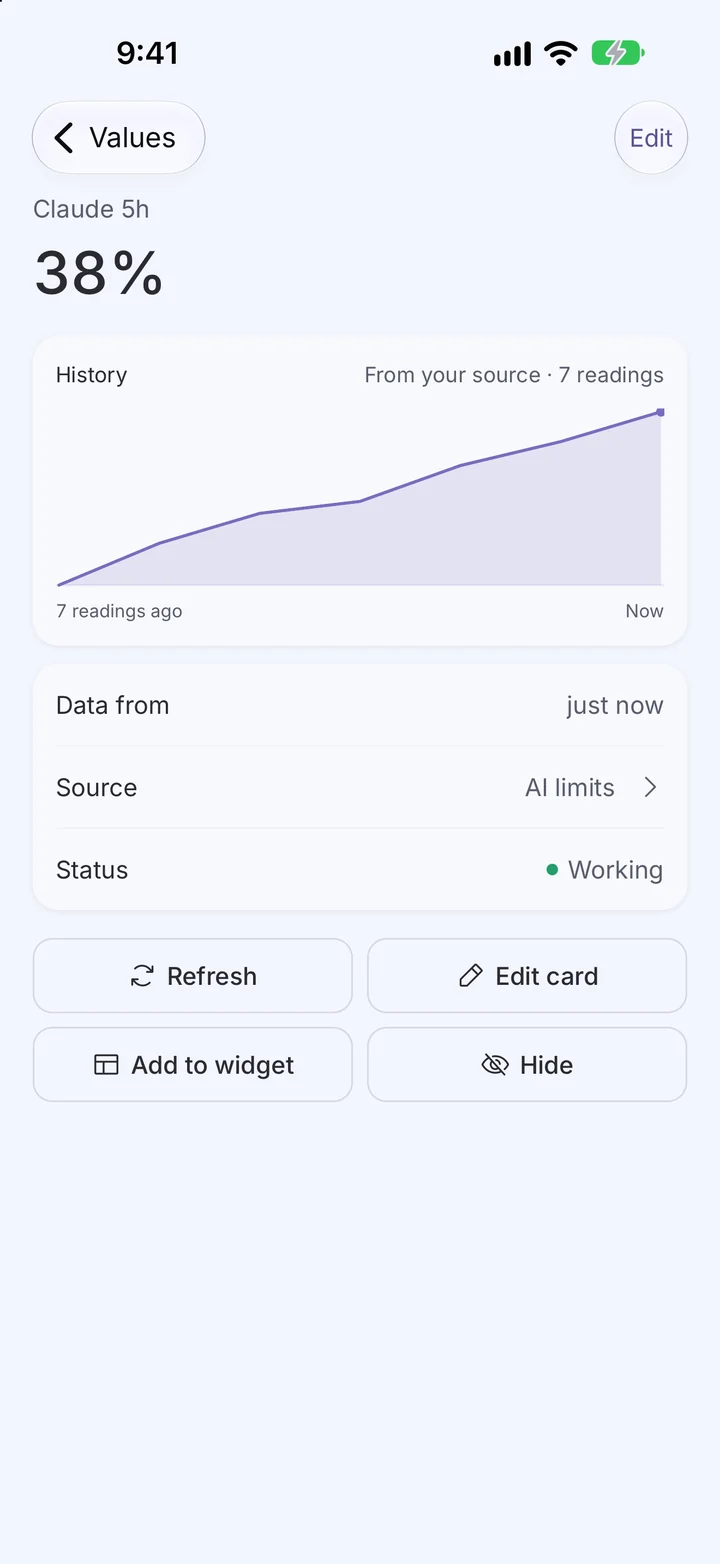
Themes
System, dark or light. Typography and layouts that make a raw number look finished.
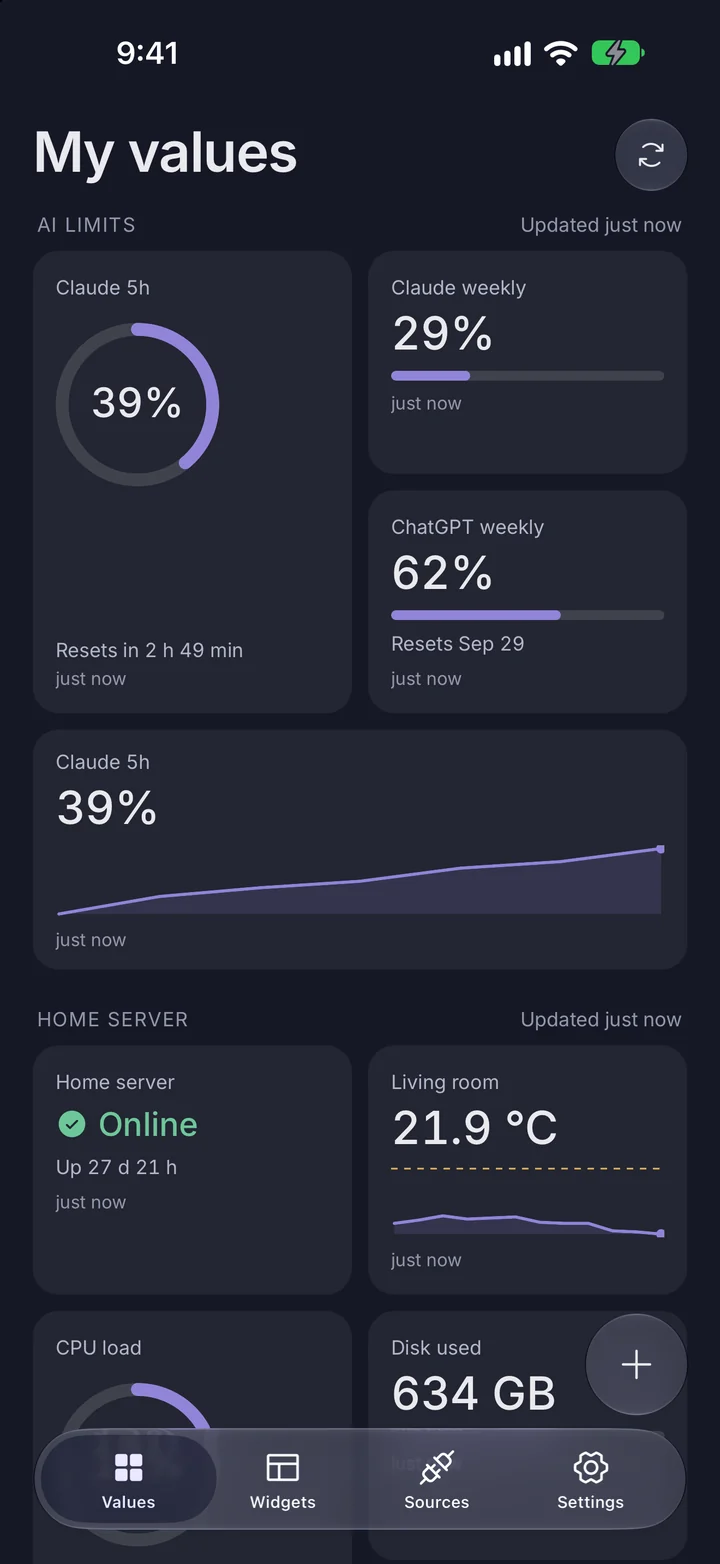
Private by design
Sideseen only displays data. It does not collect it — your source or your agent does.
No sign-up, no analytics, no ads, no tracking.
Sideseen never asks for the passwords of your services.
The app talks only to the source you control and reads only the values you chose.
Access keys live in the iOS Keychain or Android Keystore and are sent only to their own source.
Before connecting, you see exactly which address the app will contact.
Screenshots
AI agents, self-hosted services, home automation.
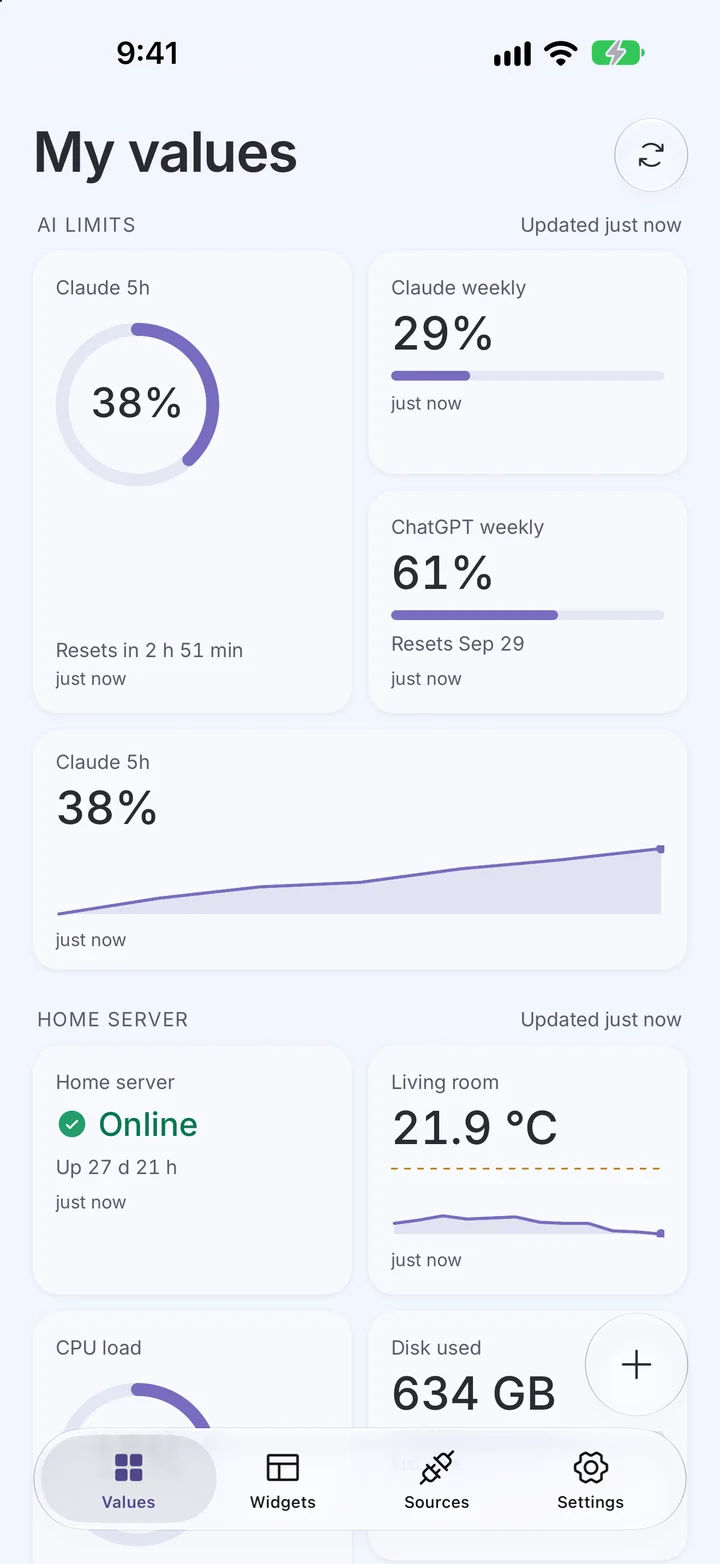
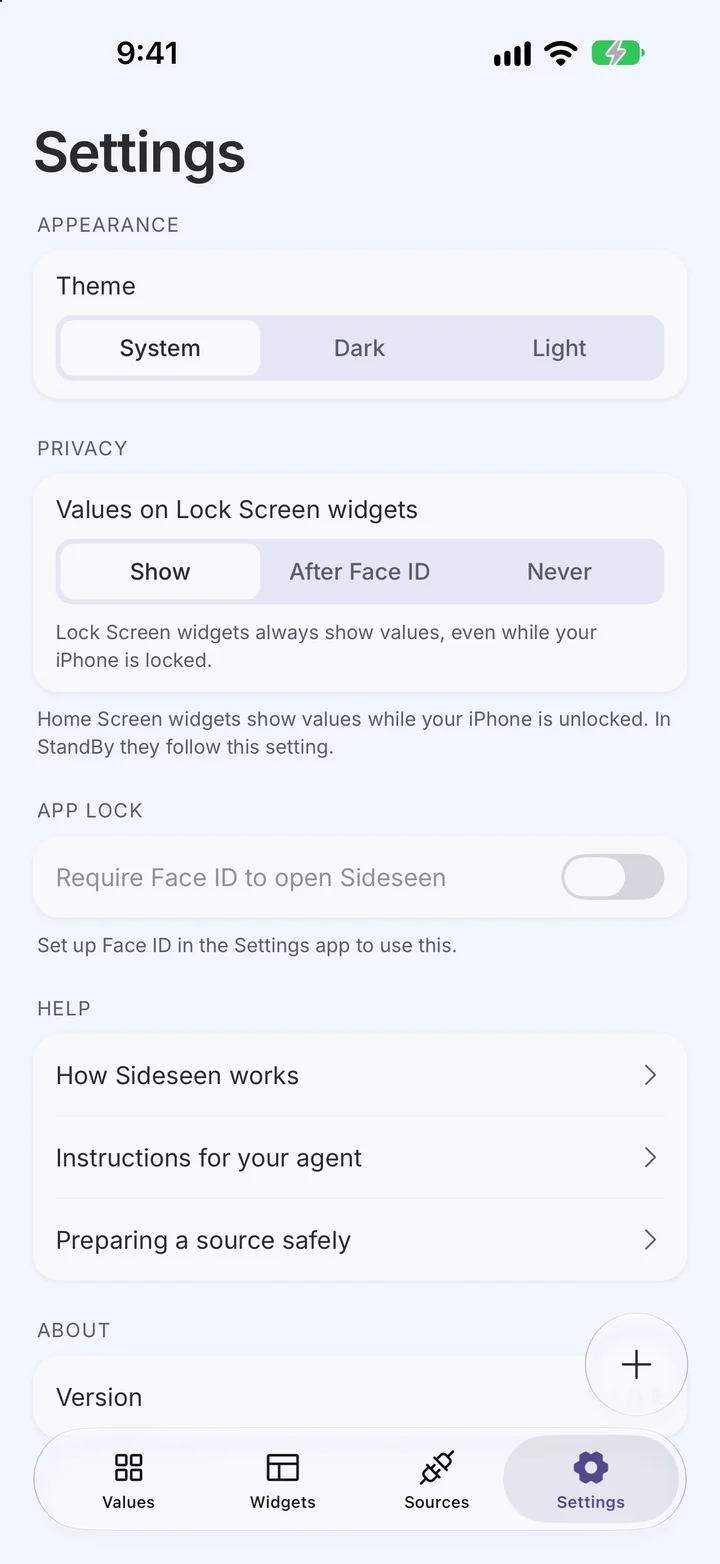

iOS and Android decide how often widgets refresh, so updates are not guaranteed at an exact interval.